Which setting actually failed? Turning Intune non-compliance into a report
Intune will happily tell you a device is Not compliant. What it won't hand you — as data you can report on — is the why: which specific setting failed, where the user sits, and what make and model they're on. To learn that, you open the device. Then the next one. Then the next.
The payoff
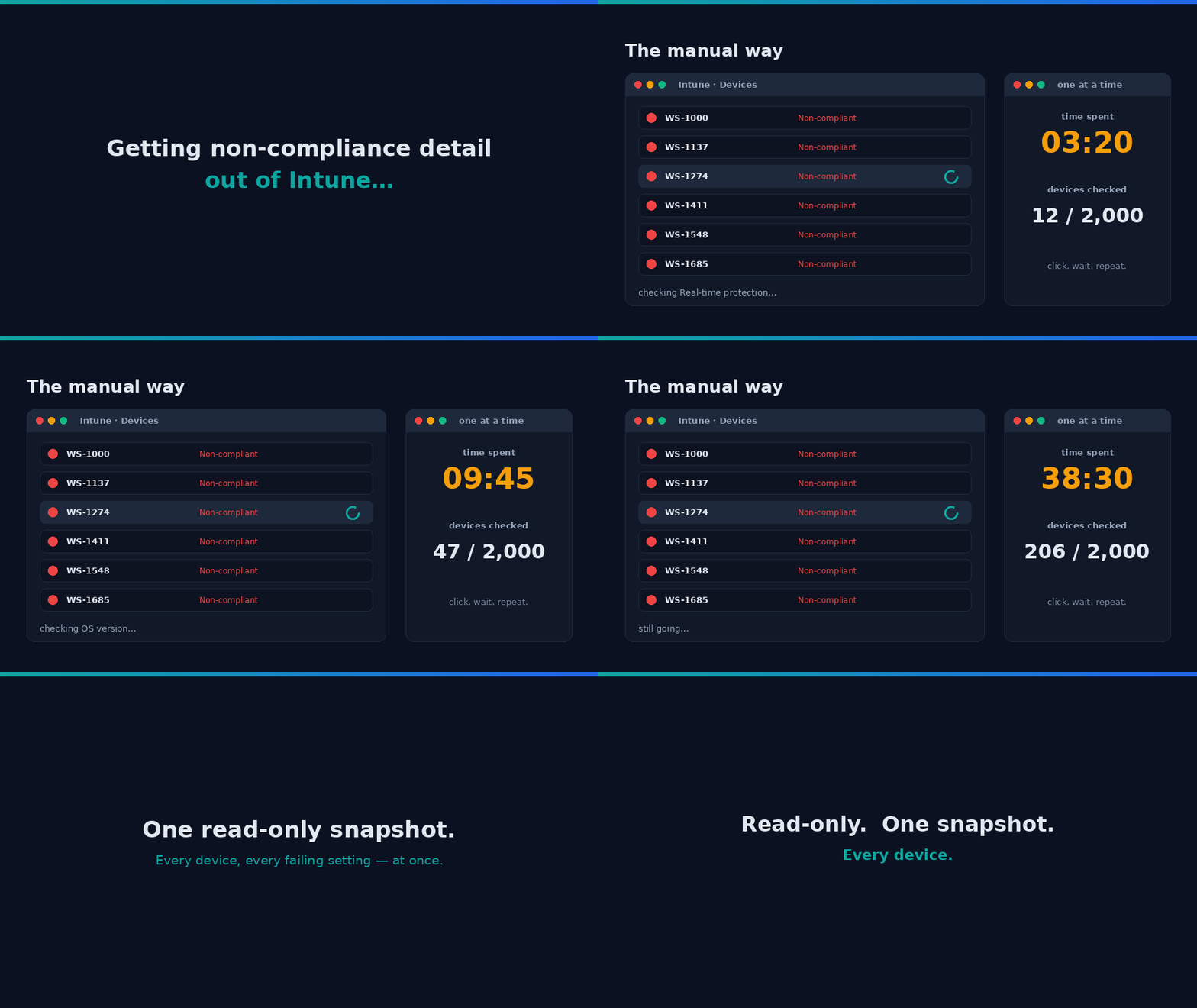
“Non-compliant” with no reason means opening each device to hunt the setting that failed — minutes each, across thousands of devices. The setting-level report names the cause (BitLocker, firewall, min-OS…) up front, so you fix the policy instead of chasing devices. (Illustrative.)
The short version
Intune tells you a device is non-compliant — not which setting. This is a scheduled, read-only collector that turns setting-level failures into a sliceable Power BI report: no write access, no standing credentials, no live tenant connection.
Non-compliant, but on what?
Here's the view every Intune admin knows. A device shows a red Not compliant badge, you open it, and you finally see the truth: it's the Firewall, and Real-time protection, and the Defender signature — but the OS version and BitLocker are fine.
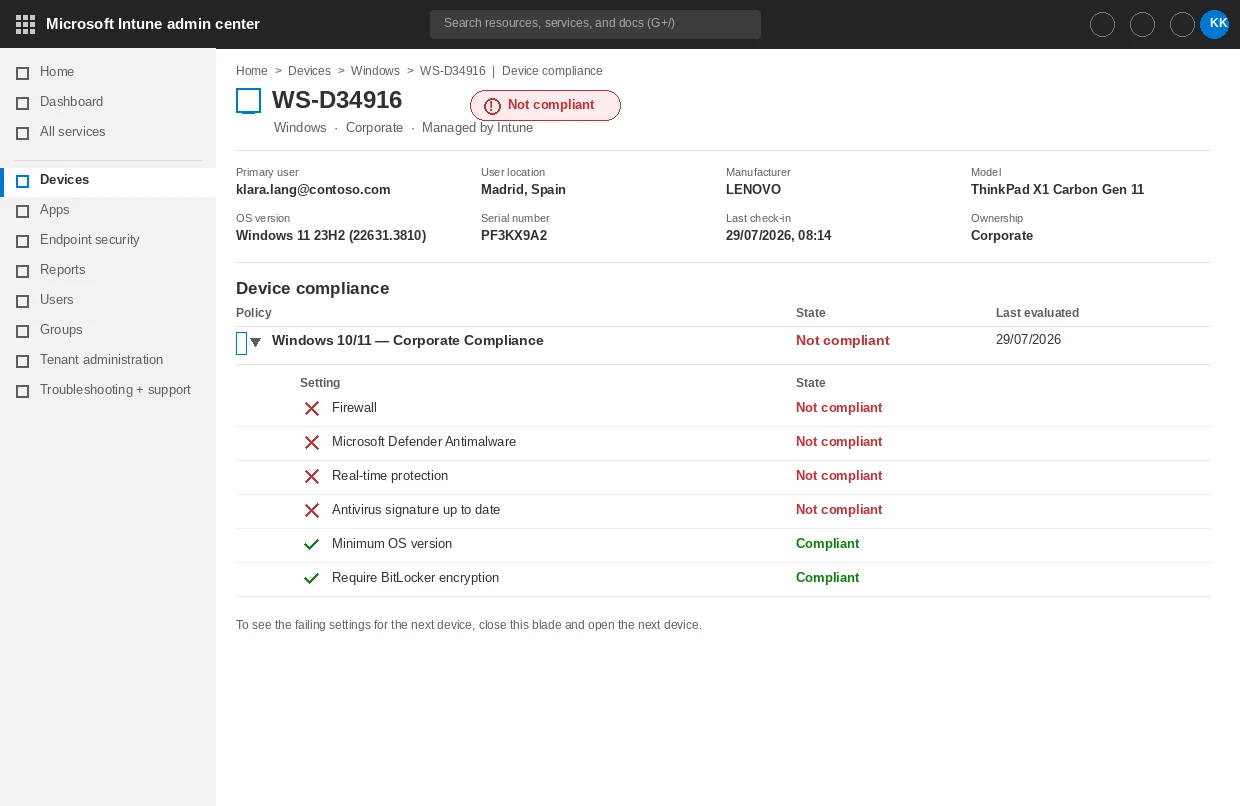
Look at everything that lives on this one blade: the failing setting states, the primary user's location (Madrid), the manufacturer and model (a Lenovo ThinkPad X1 Carbon Gen 11). It's all there — for one device. To answer a question any manager actually asks — "how many devices are failing Firewall, and in which countries?" — you'd open this blade, read it, note it down, close it, and open the next device. Across a two-thousand-device fleet, that drill-down isn't a report. It's an afternoon. Several afternoons.
Why the built-in report doesn't close the gap
"Just export it," you might say. And Intune does have a Noncompliant devices report under Reports → Device compliance. But it gives you the device list — device name, user, compliance state, last check-in. It does not give you, as exportable data, the setting-level detail: which checks failed on which policy. That detail is the thing that makes the number actionable, and it's exactly the part that stays trapped behind the per-device blade.
So the question becomes: can I get the failing settings — for every non-compliant Windows device — as a single flat table I can slice? Yes. Just not from the portal's export button.
How it works: a read-only collector
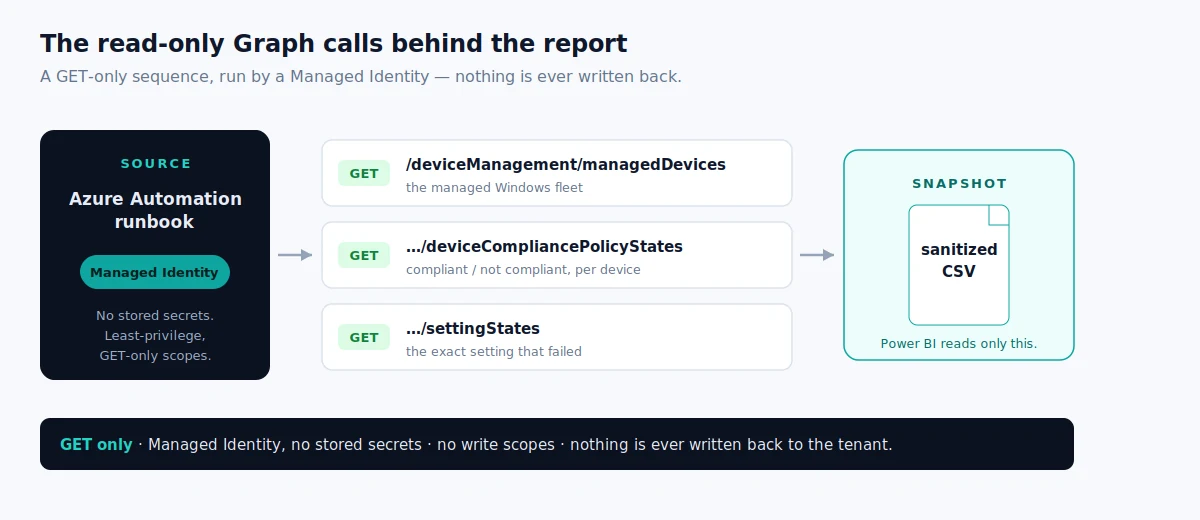
The approach is a scheduled Azure Automation runbook. It authenticates with a Managed Identity — no stored secrets, no app registration keys — and calls Microsoft Graph with GET only. Nothing is ever written back to the tenant. The shape is list → per-device → per-policy — three levels:
-
Find the non-compliant Windows devices (paged):
-
For each device, ask which policies it fails:
-
For each failing policy, ask which settings failed:
Each failing settingState becomes one row — DeviceName, the failing SettingName, its state,
plus the user's city, country, department, and the device's make and model, enriched from a single
cached users lookup. The runbook writes the result to a sanitized CSV in Blob storage.
The permissions (least-privilege, read-only)
DeviceManagementManagedDevices.Read.All · User.Read.All. Both read-only. Every call is a GET.
The bit that surprises people: the N+1 fan-out
There is no single "give me all non-compliance detail" endpoint. It's a fan-out: one call for the
device list, then one deviceCompliancePolicyStates call per device, then one
settingStates call per failing policy on that device. On a large fleet that's thousands of
calls — which is exactly why setting-level detail lives on a beta endpoint and almost nobody
surfaces it. The payoff is the thing the portal won't give you: "device X is non-compliant
specifically on Firewall and Real-time protection."
For example, one row might read CTS-4471 · Firewall · Not compliant · Madrid, ES · Lenovo ThinkPad X1 — one device, one failing setting, with the location and model already attached. Slice thousands of these by setting or by country in a single click.
One number everyone gets wrong. A device that fails three settings across two policies produces
several rows. Count rows and your "non-compliant devices" number is inflated. The report counts
distinct DeviceName, never rows — for the total, and for every per-setting, per-country and
per-manufacturer cut alike.
The script
It's parameterised — no tenant, storage account, or container is hardcoded. Set three values at the top and run it as a runbook on a schedule.
View the full script — Collect-NonCompliantDevices.ps1
<#
.SYNOPSIS
    Zero-Access collector — Non-Compliant Windows Devices.

    Read-only Azure Automation runbook. Authenticates with a Managed Identity, queries Microsoft
    Graph with read-only (.Read.All) requests to find non-compliant Windows devices and the exact settings that
    failed, enriches with user context, pre-aggregates DISTINCT-DEVICE stats, and writes sanitized
    CSV snapshots to Blob storage. Nothing is ever written back to the tenant.

    Part of the Zero-Access Agent pattern: give the report the data, never the systems.
    Independent content — not affiliated with or endorsed by Microsoft.
#>

# ===========================================================================
#  CONFIGURE ME  ->  set these to your own values, then run.
#  These three lines are the only thing you MUST change.
# ===========================================================================
$ResourceGroup  = "<your-resource-group-name>"     # resource group that holds your storage account
$StorageAccount = "<your-storage-account-name>"    # storage account name (lowercase, globally unique)
$Container      = "<your-container-name>"           # blob container, e.g. "intune-report"
# ---------------------------------------------------------------------------
# Optional: also copy the root CSV to a secondary file share (another consumer).
# Leave empty to skip. Never put a real internal server name in a public repo.
$SecondarySharePath = ""                            # e.g. "\\your-server\share"
# ===========================================================================
# Safety net - stop if the placeholders above weren't replaced.
if ("$ResourceGroup $StorageAccount $Container" -match '<your-') {
    throw "Please set ResourceGroup, StorageAccount, and Container at the top of the script before running."
}

# --- Step 1: Initialize variables ---
$ExportLocation      = "$env:TEMP"
$LenovoModelFileName = "Lenovo_Model_Details.csv"
$OutputFileName      = "NonCompliant_Windows_Devices.csv"
$AgentFileName       = "NonCompliant_Windows_Devices_Agent.csv"
$StatsFileName       = "NonCompliant_Stats.csv"
$Today               = Get-Date -Format 'yyyy-MM-dd'
$ProgressPreference  = 'SilentlyContinue'
$VerbosePreference   = 'Continue'
Write-Verbose "Script started at $(Get-Date)"

# --- Step 2: Graph GET with pagination ---
Function Invoke-MyGraphGetRequest {
    Param ($URL)
    $AllResults = @()
    try {
        Do {
            $WebRequest   = Invoke-WebRequest -Uri $URL -Method GET -Headers $script:Headers -UseBasicParsing
            $ResponseData = ($WebRequest.Content | ConvertFrom-Json)
            $AllResults  += $ResponseData.value
            $URL          = $ResponseData.'@odata.nextLink'
        } While ($URL)
        Return $AllResults
    } catch {
        Write-Error "Failed to fetch data from ${URL}: $_"
        return $null
    }
}

# --- Step 3: Authenticate with the Managed Identity (Graph token, no secrets) ---
$url     = $env:IDENTITY_ENDPOINT
$headers = New-Object "System.Collections.Generic.Dictionary[[String],[String]]"
$headers.Add("X-IDENTITY-HEADER", $env:IDENTITY_HEADER)
$headers.Add("Metadata", "True")
$body = @{ resource = 'https://graph.microsoft.com/' }
$accessToken   = (Invoke-RestMethod $url -Method 'POST' -Headers $headers -ContentType 'application/x-www-form-urlencoded' -Body $body).access_token
$script:Headers = @{ 'Authorization' = "Bearer $accessToken" }
Write-Verbose "Access token obtained."

# --- Step 4: Fetch non-compliant Windows devices (read-only GET) ---
$DeviceQuery = "https://graph.microsoft.com/beta/deviceManagement/managedDevices?`$filter=operatingSystem eq 'Windows' and complianceState eq 'nonCompliant'&`$select=id,deviceName,manufacturer,model,userPrincipalName,lastSyncDateTime,complianceState"
$DeviceData  = Invoke-MyGraphGetRequest -URL $DeviceQuery
if (!$DeviceData) { Write-Error "Failed to fetch non-compliant device data."; return }
$DeviceCount = $DeviceData.Count
$nonCompliantDevices = $DeviceData
Write-Verbose "Total non-compliant Windows devices found: $DeviceCount"

# --- Step 5: Download Lenovo model lookup (optional enrichment) ---
try {
    $StorageAccountContext = (Get-AzStorageAccount -ResourceGroupName $ResourceGroup -Name $StorageAccount).Context
    $LocalFilePath = Join-Path -Path $ExportLocation -ChildPath $LenovoModelFileName
    Get-AzStorageBlobContent -Container $Container -Blob $LenovoModelFileName -Destination $LocalFilePath -Context $StorageAccountContext -Force | Out-Null
} catch {
    Write-Warning "Lenovo model lookup not available (continuing without it): $_"
}
$LenovoModelMapping = @{}
if (Test-Path $LocalFilePath) {
    Import-Csv -Path $LocalFilePath | ForEach-Object {
        if ($_.model.Trim() -ne "" -and $_.Model1.Trim() -ne "") {
            $LenovoModelMapping[$_.model.Trim().ToUpper()] = $_.Model1.Trim()
        }
    }
}

# --- Step 6: Fetch user context for each unique user (read-only GET) ---
$UserDetails    = @{}
$UserPrincipals = $DeviceData | Select-Object -ExpandProperty userPrincipalName -Unique
foreach ($upn in $UserPrincipals) {
    if (-not $upn) { continue }
    try {
        $UserDetailsURI = "https://graph.microsoft.com/v1.0/users?`$filter=userPrincipalName eq '$upn'&`$select=displayName,userPrincipalName,city,country,department,accountEnabled"
        $UserResponse   = Invoke-MyGraphGetRequest -URL $UserDetailsURI
        if ($UserResponse -and $UserResponse.Count -gt 0) {
            $u = $UserResponse[0]
            $UserDetails[$upn] = @{ City = $u.city; Country = $u.country; Department = $u.department; AccountEnabled = $u.accountEnabled }
        }
    } catch {
        Write-Warning "Could not get details for user $upn : $_"
        $UserDetails[$upn] = @{ City = "Unknown"; Country = "Unknown"; Department = "Unknown"; AccountEnabled = "Unknown" }
    }
}

# --- Step 7: Per device -> compliance policy states -> failing setting states ---
$results = @()
foreach ($device in $nonCompliantDevices) {
    $deviceId = $device.id
    try {
        # All compliance policy states for this device
        $policyStatesUrl = "https://graph.microsoft.com/beta/deviceManagement/managedDevices/$deviceId/deviceCompliancePolicyStates"
        $policyStates    = Invoke-RestMethod -Uri $policyStatesUrl -Headers $script:Headers -Method Get

        foreach ($policyState in $policyStates.value) {
            if ($policyState.state -ne "nonCompliant") { continue }   # only failing policies

            # Individual setting states under this failing policy
            $settingsUrl      = "https://graph.microsoft.com/beta/deviceManagement/managedDevices/$deviceId/deviceCompliancePolicyStates/$($policyState.id)/settingStates"
            $settingsResponse = Invoke-RestMethod -Uri $settingsUrl -Headers $script:Headers -Method Get

            $u = $UserDetails[$device.userPrincipalName]
            $lenovo = if ($device.manufacturer -like "*Lenovo*" -and $LenovoModelMapping.ContainsKey($device.model.ToUpper())) { $LenovoModelMapping[$device.model.ToUpper()] } else { "Unknown Model" }

            if ($settingsResponse.value.Count -eq 0) {
                if ($policyState.displayName -eq "Default Device Compliance Policy") {
                    $results += [PSCustomObject]@{
                        DeviceName = $device.deviceName; PrimaryUser = $device.userPrincipalName
                        City = $u?.City ?? "Unknown"; Country = $u?.Country ?? "Unknown"; Department = $u?.Department ?? "Unknown"; AccountEnabled = $u?.AccountEnabled ?? "Unknown"
                        Manufacturer = $device.manufacturer; Model = $device.model; LenovoModelDetails = $lenovo
                        LastSyncDateTime = $device.lastSyncDateTime; CompliancePolicyName = $policyState.displayName
                        IsCompliant = $false; SettingName = "Has a compliance policy assigned"; SettingState = "Non-compliant"; StateDetails = "No compliance policies assigned to this device"
                    }
                }
                continue
            }

            foreach ($setting in $settingsResponse.value | Where-Object { $_.state -eq "nonCompliant" }) {
                $results += [PSCustomObject]@{
                    DeviceName = $device.deviceName; PrimaryUser = $device.userPrincipalName
                    City = $u?.City ?? "Unknown"; Country = $u?.Country ?? "Unknown"; Department = $u?.Department ?? "Unknown"; AccountEnabled = $u?.AccountEnabled ?? "Unknown"
                    Manufacturer = $device.manufacturer; Model = $device.model; LenovoModelDetails = $lenovo
                    LastSyncDateTime = $device.lastSyncDateTime; CompliancePolicyName = $policyState.displayName
                    IsCompliant = $false
                    SettingName  = $setting.setting -replace '.*\.', ''   # strip the policy prefix -> friendly-ish name
                    SettingState = $setting.state
                    StateDetails = $setting.errorDescription
                }
            }
        }
    } catch {
        Write-Warning "Failed to process compliance policies for device $($device.deviceName): $_"
    }
}

# --- Step 8: Root CSV for Power BI ---
if ($results.Count -gt 0) {
    $outputPath = Join-Path -Path $ExportLocation -ChildPath $OutputFileName
    $results | Export-Csv -Path $outputPath -NoTypeInformation -Force
    try {
        Set-AzStorageBlobContent -File $outputPath -Container $Container -Blob $OutputFileName -Context $StorageAccountContext -Force | Out-Null
        Write-Verbose "Uploaded $Container/$OutputFileName"
    } catch { Write-Warning "Failed to upload root report: $_" }
} else { Write-Verbose "No results to export." }

# --- Step 9: Agent copies + DISTINCT-DEVICE stats (count devices, never rows) ---
if ($results.Count -gt 0) {
    $AgentRows = $results | Select-Object DeviceName,PrimaryUser,City,Country,Department,AccountEnabled,Manufacturer,Model,LenovoModelDetails,LastSyncDateTime,CompliancePolicyName,IsCompliant,SettingName,SettingState,StateDetails,@{Name='SnapshotDate';Expression={$Today}}

    $Stats = [System.Collections.Generic.List[object]]::new()
    function Add-NCStat { param([string]$Category,[string]$Key,[int]$Count)
        $Stats.Add([pscustomobject]@{ ReportType='NonCompliant'; Category=$Category; Key=$Key; Count=$Count; SnapshotDate=$Today }) }
    function Get-DistinctDeviceCount($Group) { @($Group | Select-Object -ExpandProperty DeviceName -Unique).Count }

    $TotalDevices = @($results | Select-Object -ExpandProperty DeviceName -Unique).Count
    Add-NCStat 'Total' 'NonCompliantDevicesReported' $DeviceCount
    Add-NCStat 'Total' 'NonCompliantDevices'         $TotalDevices
    Add-NCStat 'Total' 'DevicesWithNoFailingSetting' ($DeviceCount - $TotalDevices)
    Add-NCStat 'Total' 'FailingSettingRows'          $results.Count
    $results | Group-Object SettingName          | ForEach-Object { Add-NCStat 'NonCompliantBySetting'  $_.Name (Get-DistinctDeviceCount $_.Group) }
    $results | Group-Object CompliancePolicyName | ForEach-Object { Add-NCStat 'NonCompliantByPolicy'   $_.Name (Get-DistinctDeviceCount $_.Group) }
    $results | Group-Object { "$($_.CompliancePolicyName) | $($_.SettingName)" } | ForEach-Object { Add-NCStat 'NonCompliantByPolicyAndSetting' $_.Name (Get-DistinctDeviceCount $_.Group) }
    $results | Where-Object { $_.Country }      | Group-Object Country      | ForEach-Object { Add-NCStat 'NonCompliantByCountry'      $_.Name (Get-DistinctDeviceCount $_.Group) }
    $results | Where-Object { $_.Manufacturer } | Group-Object Manufacturer | ForEach-Object { Add-NCStat 'NonCompliantByManufacturer' $_.Name (Get-DistinctDeviceCount $_.Group) }

    if ($TotalDevices -ne $DeviceCount) {
        Write-Warning "Graph reported $DeviceCount non-compliant devices but only $TotalDevices produced setting rows. $($DeviceCount - $TotalDevices) returned no failing settings."
    }

    function Publish-AgentCsv { param($Data,[string]$Name)
        if (-not $Data) { return }
        $path = Join-Path $ExportLocation $Name
        $Data | Export-Csv -Path $path -NoTypeInformation -Encoding UTF8 -Force
        $mb = [math]::Round((Get-Item $path).Length / 1MB, 2)
        if ($mb -le 12) {
            Set-AzStorageBlobContent -File $path -Container $Container -Blob "agent-data/$Name" -Context $StorageAccountContext -Force | Out-Null
            Write-Output "$Name -> agent-data ($mb MB)"
        } else { Write-Warning "$Name is $mb MB - over the 12MB agent gate; skipped." }
    }
    Publish-AgentCsv -Data $AgentRows -Name $AgentFileName
    Publish-AgentCsv -Data $Stats     -Name $StatsFileName
}

# --- Step 10 (optional): copy the root CSV to a secondary share ---
if ($SecondarySharePath -and $results.Count -gt 0) {
    try {
        Copy-Item -Path $outputPath -Destination (Join-Path -Path $SecondarySharePath -ChildPath $OutputFileName) -Force
        Write-Verbose "Copied CSV to secondary share."
    } catch { Write-Warning "Failed to copy CSV to secondary share: $_" }
}

Write-Verbose "Script completed at $(Get-Date)"
The report
The afternoon of per-device clicking becomes one page. Point Power BI at the CSV the runbook writes — no live tenant connection — and every question answers itself.
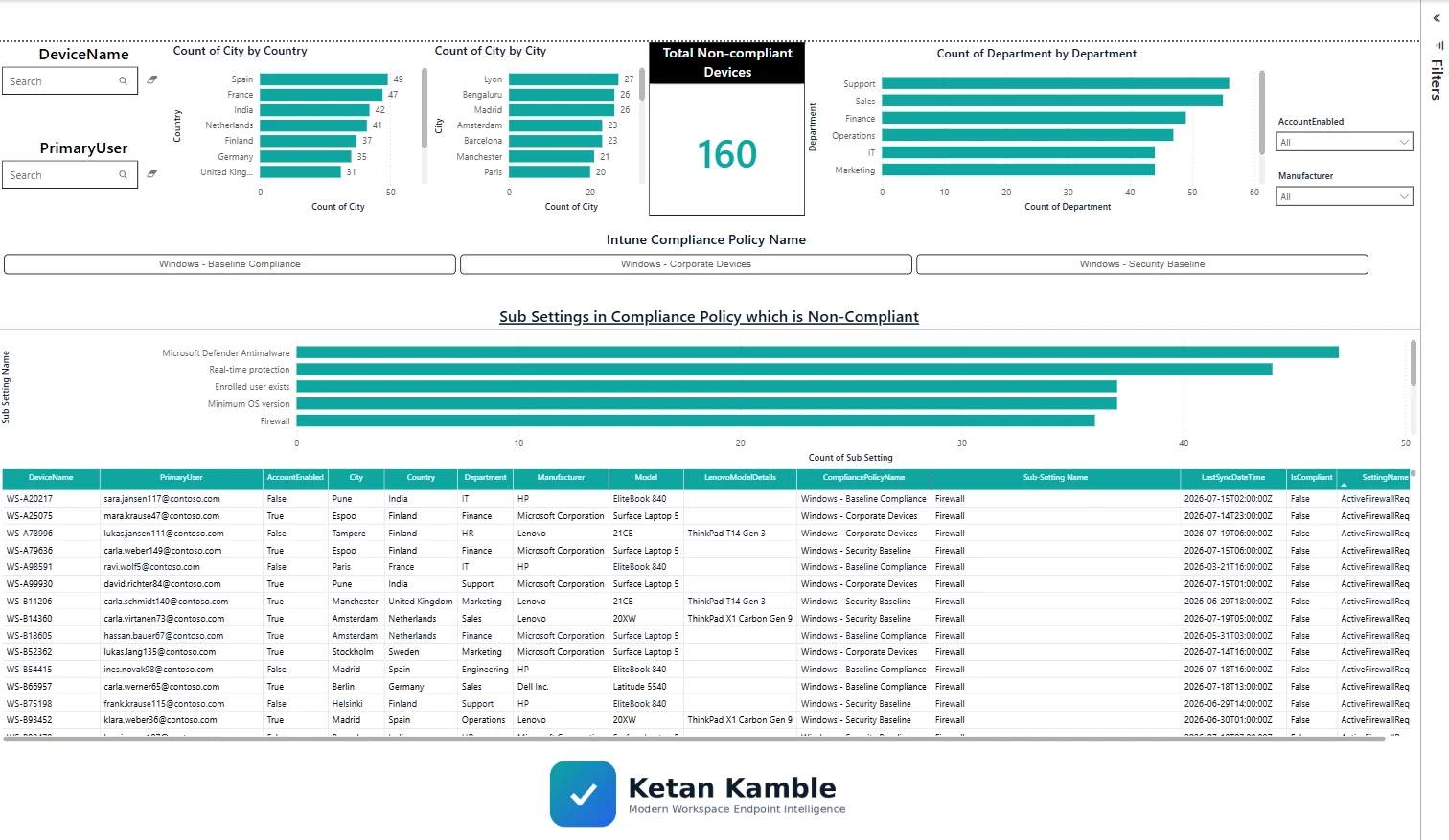
The one clever bit is friendly setting names. Graph returns machine-readable values —
ActiveFirewallRequired, RtpEnabled, OsMinimumVersion. The report maps them to what an admin
actually sees in the portal — Firewall, Real-time protection, Minimum OS version — then
de-dupes so each device × setting counts once. Now the questions answer themselves: which setting
fails most, which countries and departments carry the most failing devices, and which manufacturers
concentrate the risk.
The business value
The manual drill-down and the report answer the same question. The difference is what you can do with the answer:
- Target the fix. "42 devices fail Firewall, mostly in two countries" is a work item. "We have some non-compliant devices" is not.
- Trend it. Because it's a snapshot on a schedule, you can watch the number move after a remediation — proof the fix worked, not a vibe.
- Hand it over. A filtered list per department goes to the person who can act, with the failing setting already named.
- No standing access. The report is a sanitized CSV. Whoever reads it — an analyst, a dashboard — never holds a credential that can touch the fleet.
Set it up, step by step
You don't build this one from scratch. Every collector shares the same read-only plumbing, so you set that up once — after that, adding this report is about a five-minute job.
- One-time — stand up the collection layer. Follow Setting up the collection layer: an Azure Automation account, a system-assigned Managed Identity (no secrets, no app registration), and a storage account for the CSV snapshots. You only do this once, however many collectors you end up running.
- Grant this collector's read-only scopes. In that guide's role-assignment step, add the scopes this one needs —
DeviceManagementManagedDevices.Read.AllandUser.Read.All. Every one ends in.Read.All: it reads, and never writes to your tenant. (Running more than one collector? Scopes are additive — add the new ones, don't replace what's already granted.) - Import the script as a runbook. Take the script, import it into the Automation Account as a PowerShell 7 runbook, and publish it.
- Schedule it. Attach a daily (or weekly) schedule the same way the setup guide shows. It then runs unattended, dropping a dated CSV into your
root/container each time. - Point Power BI at the CSV. Open the report template in Power BI Desktop and start with the bundled synthetic sample, so you can build the whole thing before touching real data. To switch to live data, use Get Data → Azure Blob Storage and point it at the dated CSV in your
root/container (the setup guide has the storage account and connection details). Refresh, and that's your dashboard.
No secrets, no app registration, nothing that can change your tenant — just a scheduled read and a CSV that Power BI draws from.
FAQ
Does this change anything in my tenant? No. Every Graph call is a GET, the identity is read-only, and the output is a file. It cannot remediate, and it cannot be used to remediate.
Why the /beta endpoint? Setting-level compliance detail is only exposed on /beta. Beta shapes
can change — reproduce it in a lab before you depend on it, and expect the odd device that returns
policy states but no setting states (the script handles that case).
Can I run it without Azure Automation? Yes — it's plain PowerShell 7. Automation + Managed Identity is just the cleanest way to run it on a schedule with no secrets.
More in this series
Related
- The script, in detail → Non-Compliant Devices
- The full teardown → how the Graph calls fit together
- The report → Non-Compliant Windows Devices — Power BI
- The capstone → The read-only AI agent that can't touch your tenant
References — Microsoft documentation
The Microsoft Learn documentation behind this one, if you want to go to the source:
- Monitor compliance — where compliance results surface in Intune: Monitor device compliance policy results
- Compliance policies — what a compliance policy evaluates: Device compliance policies in Microsoft Intune
- deviceComplianceSettingState — the per-setting failure resource: deviceComplianceSettingState resource type
- List setting states — pull which setting failed, at scale: List deviceComplianceSettingStates
- Setting-state summary — aggregate per-setting compliance counts: deviceCompliancePolicySettingStateSummary
- complianceState enum — decoding the per-device value: complianceState enum type
Screenshots use synthetic data from a personal lab — no real tenant, users, or devices. Independent content, not affiliated with, sponsored by, or endorsed by Microsoft. Microsoft, Intune, Entra, Microsoft Graph, Azure, Defender and Power BI are trademarks of the Microsoft group of companies.

I build read-only Intune & Entra tooling in the open and write about what the portal is actually doing underneath. Everything comes from a personal lab.