Windows 11 Readiness
Per-device Windows 11 hardware readiness — the exact failing check, joined to make and model.
Download the script View on GitHub
1 · The script
Read-only by construction — it authenticates with a Managed Identity, calls Microsoft Graph read-only (.Read.All scopes), and writes a sanitized CSV snapshot. Set the CONFIG values at the top, then run.
View the full script (17 KB)
#requires -Version 7.0
<#
.SYNOPSIS
    Collect-Windows11Readiness.ps1 — Windows 11 hardware-readiness collector for the
    Zero-Access Pattern. Read-only, Managed-Identity, pre-aggregating.

.DESCRIPTION
    Pulls Endpoint Analytics "Work From Anywhere" Windows 11 readiness metrics, enriches each
    device with its primary user (bulk-fetched once) and an OEM friendly-model lookup, derives
    a readiness reason from the failed hardware checks, and writes:
      root/       Windows11Readiness.csv         (full, exact Power BI column contract)
      agent-data/ Windows11Readiness_Agent.csv   (slim)
      agent-data/ Windows11Readiness_Stats.csv   (pre-computed counts so the agent COUNTS,
                                                  never enumerates — incl. the Windows-10 +
                                                  active-in-14-days breakdown and which check
                                                  is blocking upgrades)
    Read-only throughout — nothing is written to the tenant.

.NOTES
    GENERIC / PARAMETERIZED: no resource group, storage account, or container is hardcoded.
    Run against a personal lab tenant only.

    The Lenovo_Model_Details.csv (MTM code -> friendly model) is an optional lookup you keep in
    the container; if absent, the friendly name degrades to "Unknown Model", never breaks.

    BETA ENDPOINT: readiness metrics use /beta; managed devices and users use /v1.0. Re-verify
    after Graph updates.

    Read-only Graph app roles on the Managed Identity:
      DeviceManagementManagedDevices.Read.All   (readiness metrics + managed devices)
      User.Read.All                             (user location)
    Plus "Storage Blob Data Contributor" on the storage account.

    MIT licensed. Microsoft, Intune, Entra, Windows, Microsoft Graph and Azure are trademarks
    of the Microsoft group of companies; Lenovo is a trademark of Lenovo. Independent content;
    not endorsed by Microsoft or Lenovo.
#>

# ===========================================================================
#  CONFIGURE ME  ->  set these to your own values, then run.
#  These three lines are the only thing you MUST change.
# ===========================================================================
$ResourceGroup  = "<your-resource-group-name>"     # resource group that holds your storage account
$StorageAccount = "<your-storage-account-name>"    # storage account name (lowercase, globally unique)
$Container      = "<your-container-name>"           # blob container, e.g. "intune-report"

# -- optional settings (safe to leave as they are) --------------------------
$ActiveDayThreshold  = 14                            # a device synced within N days counts as "active"
$LenovoModelFileName = "Lenovo_Model_Details.csv"    # optional MTM->friendly-model lookup in the container
# ===========================================================================

# Safety net - stop if the placeholders above weren't replaced.
if ("$ResourceGroup $StorageAccount $Container" -match '<your-') {
    throw "Please set ResourceGroup, StorageAccount, and Container at the top of the script before running."
}

#-- Step 1 - Initialize Variables
$ExportLocation      = "$env:TEMP"
$Today               = Get-Date -Format 'yyyy-MM-dd'
$ProgressPreference  = 'SilentlyContinue'
$VerbosePreference   = 'Continue'

#-- Step 2 - Graph GET with pagination
Function Invoke-MyGraphGetRequest {
    Param ($URL)
    Write-Verbose "Sending request to $URL"
    $AllResults = @()
    try {
        Do {
            $WebRequest   = Invoke-WebRequest -Uri $URL -Method GET -Headers $script:Headers -UseBasicParsing
            $ResponseData = ($WebRequest.Content | ConvertFrom-Json)
            $AllResults  += $ResponseData.value
            $URL          = $ResponseData.'@odata.nextLink'
        } While ($URL)
        Return $AllResults
    } catch {
        Write-Error "Failed to fetch data from ${URL}: $_"
        return $null
    }
}

#-- Step 3 - Authenticate with Managed Identity
$url = $env:IDENTITY_ENDPOINT
$headers = New-Object "System.Collections.Generic.Dictionary[[String],[String]]"
$headers.Add("X-IDENTITY-HEADER", $env:IDENTITY_HEADER)
$headers.Add("Metadata", "True")
$body = @{ resource = 'https://graph.microsoft.com/' }

Write-Verbose "Obtaining access token"
$accessToken    = (Invoke-RestMethod $url -Method 'POST' -Headers $headers -ContentType 'application/x-www-form-urlencoded' -Body $body).access_token
$script:Headers = @{ 'Authorization' = "Bearer $accessToken" }
Write-Verbose "Access token obtained successfully"

#-- Step 4 - Storage context
try {
    $StorageAccountContext = (Get-AzStorageAccount -ResourceGroupName $ResourceGroup -Name $StorageAccount).Context
    Write-Verbose "Storage context obtained"
} catch { Write-Error "Failed to get storage context: $_"; return }

#-- Step 5 - Fetch Windows 11 readiness metrics (one paginated sweep)
#   NOTE: no $filter here. We fetch all, then scope locally in Step 9 to
#   'capable' / 'notCapable' so the ROOT CSV row set matches the Power BI contract.
$DeviceReadinessURI = "https://graph.microsoft.com/beta/deviceManagement/userExperienceAnalyticsWorkFromAnywhereMetrics('allDevices')/metricDevices?`$select=id,deviceName,manufacturer,model,osDescription,osVersion,upgradeEligibility,azureAdJoinType,ramCheckFailed,storageCheckFailed,processorCoreCountCheckFailed,processorSpeedCheckFailed,tpmCheckFailed,secureBootCheckFailed,processorFamilyCheckFailed,processor64BitCheckFailed,osCheckFailed"

Write-Verbose "Fetching Windows 11 readiness data..."
$DeviceData = Invoke-MyGraphGetRequest -URL $DeviceReadinessURI
if (!$DeviceData) { Write-Error "Failed to fetch device readiness data."; return }
Write-Verbose "Total devices returned by Graph: $($DeviceData.Count)"

#-- Step 6 - Bulk-fetch ALL managed devices ONCE -> hashtable
#   Replaces one Graph call per device.
Write-Verbose "Fetching all managed devices (bulk)..."
$ManagedDevices = Invoke-MyGraphGetRequest -URL "https://graph.microsoft.com/v1.0/deviceManagement/managedDevices?`$select=deviceName,userPrincipalName,lastSyncDateTime,operatingSystem,osVersion"
if (!$ManagedDevices) { Write-Error "Failed to fetch managed devices."; return }

$ManagedDeviceMap = @{}
foreach ($md in $ManagedDevices) {
    if ($md.deviceName) {
        $k = $md.deviceName.ToUpper()
        if (-not $ManagedDeviceMap.ContainsKey($k)) { $ManagedDeviceMap[$k] = $md }
    }
}
Write-Verbose "Managed device map built: $($ManagedDeviceMap.Count) entries"

#-- Step 7 - Bulk-fetch ALL users ONCE -> hashtable
Write-Verbose "Fetching all users (bulk)..."
$AllUsers = Invoke-MyGraphGetRequest -URL "https://graph.microsoft.com/v1.0/users?`$select=displayName,userPrincipalName,city,country,officeLocation"

$UserMap = @{}
foreach ($u in $AllUsers) {
    if ($u.userPrincipalName) { $UserMap[$u.userPrincipalName.ToUpper()] = $u }
}
Write-Verbose "User map built: $($UserMap.Count) entries"

#-- Step 8 - Download + parse OEM (Lenovo) model lookup
Write-Verbose "Downloading '$LenovoModelFileName'..."
$LenovoModelMapping = @{}
try {
    $LocalFilePath = Join-Path -Path $ExportLocation -ChildPath $LenovoModelFileName
    Get-AzStorageBlobContent -Container $Container -Blob $LenovoModelFileName `
        -Destination $LocalFilePath -Context $StorageAccountContext -Force | Out-Null

    Import-Csv -Path $LocalFilePath | ForEach-Object {
        if ($_.model.Trim() -ne "" -and $_.Model1.Trim() -ne "") {
            $LenovoModelMapping[$_.model.Trim().ToUpper()] = $_.Model1.Trim()
        }
    }
    Write-Verbose "Model map built: $($LenovoModelMapping.Count) entries"
} catch {
    Write-Warning "Model lookup unavailable, continuing without friendly names: $_"
}

#-- Step 9 - Build the enriched record set (single pass, O(1) lookups)
Write-Verbose "Building report..."

function Get-FirstValue($v) {
    if ($v -is [array]) { if ($v.Count -gt 0) { return $v[0] } else { return "Unknown" } }
    if ($v)             { return $v }
    return "Unknown"
}

$Enriched = foreach ($device in $DeviceData) {

    if (-not $device.deviceName) { continue }

    # Preserve scope: only capable / notCapable rows reach the root CSV.
    if ($device.upgradeEligibility -notin @('capable','notCapable')) { continue }

    $key  = $device.deviceName.ToUpper()
    $md   = if ($ManagedDeviceMap.ContainsKey($key)) { $ManagedDeviceMap[$key] } else { $null }
    $upn  = if ($md -and $md.userPrincipalName) { [string]$md.userPrincipalName } else { "Unknown" }
    $user = if ($upn -ne "Unknown" -and $UserMap.ContainsKey($upn.ToUpper())) { $UserMap[$upn.ToUpper()] } else { $null }

    # Last sync + activity window
    $LastSyncDate = "Unknown"; $DaysAgo = ""; $IsActive = ""
    if ($md -and $md.lastSyncDateTime) {
        $syncDt       = [datetime]$md.lastSyncDateTime
        $LastSyncDate = $syncDt.ToString("yyyy-MM-dd")
        $DaysAgo      = [int](New-TimeSpan -Start $syncDt -End (Get-Date)).TotalDays
        $IsActive     = if ($DaysAgo -le $ActiveDayThreshold) { "Yes" } else { "No" }
    }

    # Friendly model name
    $modelKey    = if ($device.model) { $device.model.Trim().ToUpper() } else { "" }
    $ExactModel1 = if ($modelKey -and $LenovoModelMapping.ContainsKey($modelKey)) { $LenovoModelMapping[$modelKey] } else { "Unknown Model" }

    # Failed hardware checks
    $FailedChecks = @()
    if ($device.tpmCheckFailed)                { $FailedChecks += "TPM Check Failed" }
    if ($device.secureBootCheckFailed)         { $FailedChecks += "Secure Boot Check Failed" }
    if ($device.processorFamilyCheckFailed)    { $FailedChecks += "Processor Family Check Failed" }
    if ($device.ramCheckFailed)                { $FailedChecks += "RAM Check Failed" }
    if ($device.storageCheckFailed)            { $FailedChecks += "Storage Check Failed" }
    if ($device.processorCoreCountCheckFailed) { $FailedChecks += "Processor Core Count Check Failed" }
    if ($device.processorSpeedCheckFailed)     { $FailedChecks += "Processor Speed Check Failed" }
    if ($device.processor64BitCheckFailed)     { $FailedChecks += "Processor 64-Bit Check Failed" }
    if ($device.osCheckFailed)                 { $FailedChecks += "OS Check Failed" }

    # Readiness reason - single authoritative block.
    if ($device.upgradeEligibility -eq 'capable') {
        $ReadinessState  = "Capable"
        $ReadinessReason = "Capable"
    }
    else {
        $ReadinessState  = "Not Capable"
        $ReadinessReason = if ($FailedChecks.Count -gt 0) { "Not Capable: " + ($FailedChecks -join ", ") } else { "Not Capable" }
    }

    [PSCustomObject]@{
        # --- root CSV columns ---
        DeviceName                    = $device.deviceName
        PrimaryUser                   = $upn
        City                          = Get-FirstValue $user.city
        Country                       = Get-FirstValue $user.country
        OfficeLocation                = Get-FirstValue $user.officeLocation
        Manufacturer                  = $device.manufacturer
        Model                         = $device.model
        Model1                        = $ExactModel1
        Windows11ReadinessReason      = $ReadinessReason
        RamCheckFailed                = $device.ramCheckFailed
        StorageCheckFailed            = $device.storageCheckFailed
        ProcessorCoreCountCheckFailed = $device.processorCoreCountCheckFailed
        ProcessorSpeedCheckFailed     = $device.processorSpeedCheckFailed
        TPMCheckFailed                = $device.tpmCheckFailed
        SecureBootCheckFailed         = $device.secureBootCheckFailed
        ProcessorFamilyCheckFailed    = $device.processorFamilyCheckFailed
        Processor64BitCheckFailed     = $device.processor64BitCheckFailed
        OSCheckFailed                 = $device.osCheckFailed
        LastSyncDate                  = $LastSyncDate

        # --- additional fields, agent-only (NOT written to the root CSV) ---
        Windows11ReadinessState       = $ReadinessState
        OperatingSystem               = if ($md) { $md.operatingSystem } else { $device.osDescription }
        OSVersion                     = if ($md) { $md.osVersion } else { $device.osVersion }
        LastSyncDaysAgo               = $DaysAgo
        IsActiveLast14Days            = $IsActive
        SnapshotDate                  = $Today
    }
}

if (!$Enriched) { Write-Error "No report rows produced."; return }
Write-Verbose "Report rows (capable + notCapable): $($Enriched.Count)"

#-- Step 10 - ROOT CSV: exact Power BI column set + order.
$PowerBIRows = $Enriched | Select-Object `
    DeviceName, PrimaryUser, City, Country, OfficeLocation,
    Manufacturer, Model, Model1, Windows11ReadinessReason,
    RamCheckFailed, StorageCheckFailed, ProcessorCoreCountCheckFailed,
    ProcessorSpeedCheckFailed, TPMCheckFailed, SecureBootCheckFailed,
    ProcessorFamilyCheckFailed, Processor64BitCheckFailed, OSCheckFailed,
    LastSyncDate

#-- Step 11 - Slim agent copy (drops the nine booleans; the Reason string carries them)
$AgentRows = $Enriched | Select-Object `
    DeviceName, PrimaryUser, City, Country, OfficeLocation,
    Manufacturer, Model1, OperatingSystem, OSVersion,
    Windows11ReadinessState, Windows11ReadinessReason,
    LastSyncDate, LastSyncDaysAgo, IsActiveLast14Days, SnapshotDate

#-- Step 12 - Pre-computed stats (so the agent COUNTS instead of enumerating)
Write-Verbose "Building summary statistics..."
$Stats = [System.Collections.Generic.List[object]]::new()

function Add-Stat {
    param([string]$Category, [string]$Key, [int]$Count)
    $Stats.Add([pscustomobject]@{
        ReportType   = 'Windows11Readiness'
        Category     = $Category
        Key          = $Key
        Count        = $Count
        SnapshotDate = $Today
    })
}

Add-Stat -Category 'Total' -Key 'AllDevices' -Count $Enriched.Count

$Enriched | Group-Object Windows11ReadinessState | ForEach-Object {
    Add-Stat -Category 'DevicesByW11Readiness' -Key $_.Name -Count $_.Count
}

# Windows 10 split. Both W10 and W11 report OSVersion as 10.0.x, so split on build:
# builds >= 22000 are Windows 11.
function Get-OSBuild($osVersion) {
    if ($osVersion -match '^\d+\.\d+\.(\d+)') { return [int]$Matches[1] }
    return 0
}
$Win10 = $Enriched | Where-Object {
    $_.OperatingSystem -match 'Windows' -and (Get-OSBuild $_.OSVersion) -gt 0 -and (Get-OSBuild $_.OSVersion) -lt 22000
}
$Win10 | Group-Object Windows11ReadinessState | ForEach-Object {
    Add-Stat -Category 'Windows10ByReadiness' -Key $_.Name -Count $_.Count
}

# The exact service-manager question: Windows 10 + active in last 14 days
$Win10Active = $Win10 | Where-Object { $_.IsActiveLast14Days -eq 'Yes' }
$Win10Active | Group-Object Windows11ReadinessState | ForEach-Object {
    Add-Stat -Category 'Windows10ActiveLast14DaysByReadiness' -Key $_.Name -Count $_.Count
}

$Enriched | Where-Object { $_.IsActiveLast14Days -eq 'Yes' } |
    Group-Object Windows11ReadinessState | ForEach-Object {
        Add-Stat -Category 'ActiveLast14DaysByReadiness' -Key $_.Name -Count $_.Count
    }

# Which hardware check is blocking upgrades, and on how many devices
$checkMap = [ordered]@{
    'TPMCheckFailed'                = 'TPM'
    'SecureBootCheckFailed'         = 'Secure Boot'
    'ProcessorFamilyCheckFailed'    = 'Processor Family'
    'RamCheckFailed'                = 'RAM'
    'StorageCheckFailed'            = 'Storage'
    'ProcessorCoreCountCheckFailed' = 'Processor Core Count'
    'ProcessorSpeedCheckFailed'     = 'Processor Speed'
    'Processor64BitCheckFailed'     = 'Processor 64-Bit'
    'OSCheckFailed'                 = 'OS'
}
foreach ($prop in $checkMap.Keys) {
    $n = @($Enriched | Where-Object { $_.$prop -eq $true }).Count
    if ($n -gt 0) { Add-Stat -Category 'NotCapableByFailedCheck' -Key $checkMap[$prop] -Count $n }
}

# Composites (Key format "A | B")
$Enriched | Where-Object { $_.OfficeLocation -ne 'Unknown' } |
    Group-Object { "$($_.OfficeLocation) | $($_.Windows11ReadinessState)" } | ForEach-Object {
        Add-Stat -Category 'DevicesByLocationAndW11Readiness' -Key $_.Name -Count $_.Count
    }

$Enriched | Group-Object { "$($_.Manufacturer) | $($_.Windows11ReadinessState)" } | ForEach-Object {
    Add-Stat -Category 'DevicesByManufacturerAndW11Readiness' -Key $_.Name -Count $_.Count
}

Write-Verbose "Summary stat rows: $($Stats.Count)"

#-- Step 13 - Publish helper (12 MB agent gate)
function Publish-Csv {
    param($Data, [string]$Name, [switch]$RootOnly, [switch]$AgentOnly)
    if (-not $Data) { Write-Warning "No rows for $Name"; return }

    $path = Join-Path $ExportLocation $Name
    $Data | Export-Csv -Path $path -NoTypeInformation -Encoding UTF8 -Force
    $mb = [math]::Round((Get-Item $path).Length / 1MB, 2)

    if (-not $AgentOnly) {
        Set-AzStorageBlobContent -File $path -Container $Container -Blob $Name `
            -Context $StorageAccountContext -Force | Out-Null
        Write-Output "$Name -> root ($mb MB)"
    }
    if (-not $RootOnly) {
        if ($mb -le 12) {
            Set-AzStorageBlobContent -File $path -Container $Container -Blob "agent-data/$Name" `
                -Context $StorageAccountContext -Force | Out-Null
            Write-Output "$Name -> agent-data ($mb MB)"
        } else {
            Write-Warning "$Name is $mb MB - over 12MB gate; agent copy skipped."
        }
    }
}

#-- Step 14 - Publish
Publish-Csv -Data $PowerBIRows -Name "Windows11Readiness.csv" -RootOnly

# agent-only files. Power BI never sees these.
Publish-Csv -Data $AgentRows -Name "Windows11Readiness_Agent.csv" -AgentOnly
Publish-Csv -Data $Stats     -Name "Windows11Readiness_Stats.csv" -AgentOnly

Write-Verbose "Script completed successfully at $(Get-Date)"
2 · The Power BI template
Windows 11 Readiness template (.pbit)
Opens to a pre-built report — KPI cards, charts, a detail table and slicers, already wired. On open it prompts for your Storage account / container / file, then loads from Blob. Full details on the report page.
3 · Example report
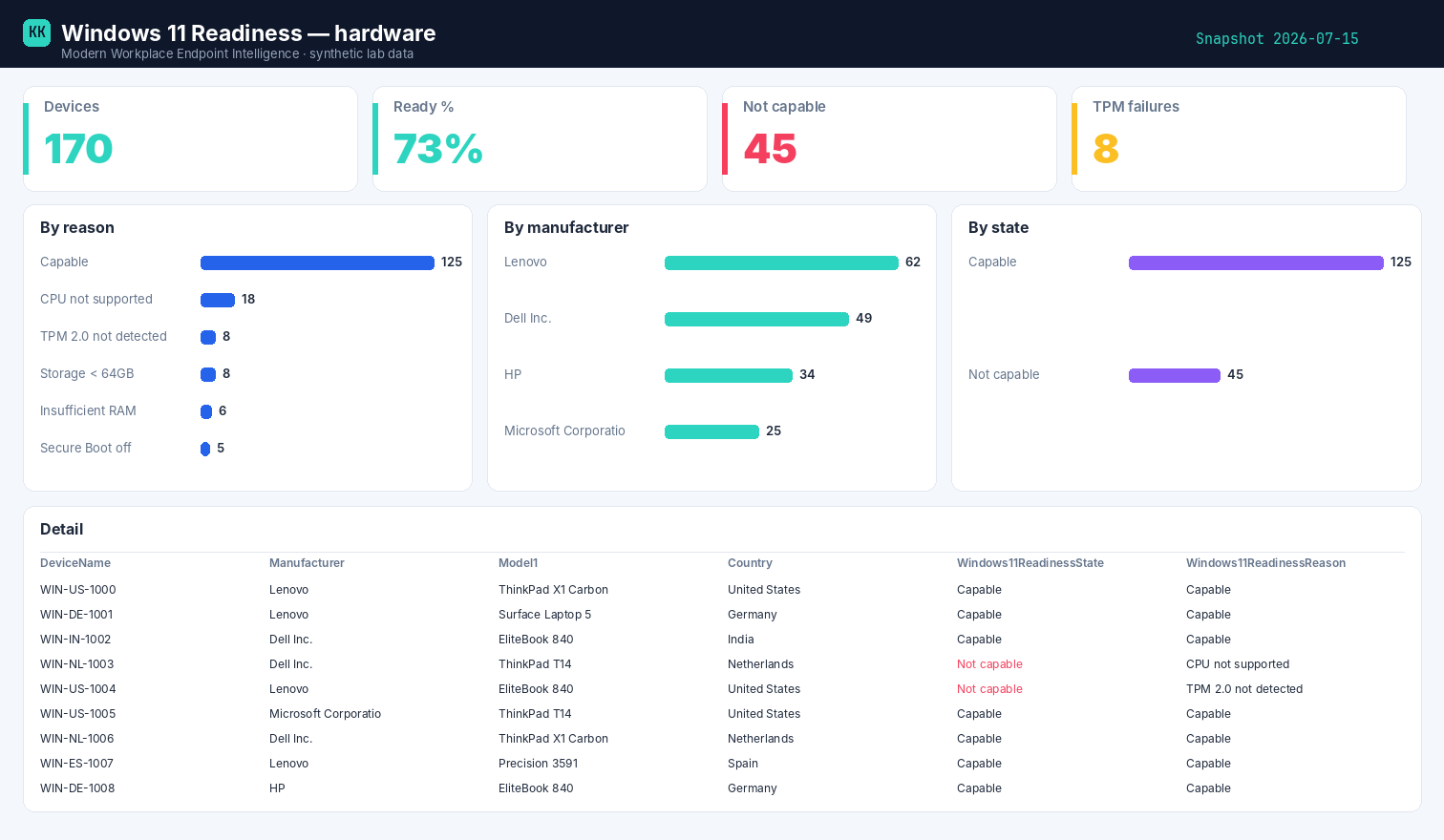
Built on synthetic @contoso.com data. Point the template at your own snapshot to see your fleet.
Related
- The story → Which devices can't take Windows 11
- Power BI report → Windows 11 Readiness report
- Part of → Zero-Access Agent