One row per device: building the inventory Intune won't hand you
Every fleet question starts the same way — how many devices, running what, owned by whom, and where do they sit? Intune knows all of it. The problem is it knows each part in a different place: the OS on the device blade, the user's country in Entra, the warranty in a Notes field, the Defender agent in a security report. This is the read-only collector that joins them into one flat row per device you can actually slice.
The payoff
Answering “how many Dell, out-of-warranty, Windows 10 devices in Madrid?” by hand means three exports and a VLOOKUP every single time. One dated row-per-device turns that into a single slicer click — minutes of ad-hoc analysis instead of an afternoon. (Illustrative.)
The short version
Intune's All devices list is a screen, not a dataset. This scheduled, read-only collector joins managed devices with the user's location (Entra), OEM warranty (Notes) and Defender agent health into a single sliceable table — no write access, no stored secrets, no live tenant connection. It's the backbone snapshot every other report in this series leans on.
Why this one comes first
If the non-compliance post was the flashy one, this is the foundation. Almost every question a manager asks — "how old is the Lenovo estate in India?", "which offices still run Windows 10?", "how many personal devices are unencrypted?" — is really a question about one enriched inventory table. Build this once, build it well, and the rest of the reports are just different slices of it.
The portal already has "All devices" — so what's missing?
Fair challenge. Open Devices → All devices and you get a perfectly good list: device name, managed-by, ownership, compliance, OS, last check-in. For eyeballing a handful of machines, it's fine. It stops being fine the moment you need to answer a question across the fleet, and here's exactly where it runs out of road:
- It's a grid, not a model. You can sort and filter columns, but you can't cross-tabulate — "Dell devices, out of warranty, in the Madrid office, still on Windows 10" is four filters the list view won't combine into a number.
- The columns you most need aren't there. The user's city / country / office lives in Entra, not on the device. OEM warranty lives in a Notes field you have to open each device to read. Defender agent health lives in a separate security report entirely. The All devices list shows none of them.
- Export gives you the list, not the joins. Yes, you can export — but you export those same columns. The enrichment that makes the data useful still isn't in the file; you'd be VLOOKUP-ing three exports together by hand.
- It's live and shape-shifting. The list reflects this instant. There's no clean, dated snapshot to trend against or hand to a report that expects a stable schema.
None of this is a knock on Intune — the console is built for managing devices, one at a time. It was never meant to be your reporting warehouse. So the job is to lift the same facts out once, enrich them, and freeze them into a table.
What's different about this inventory
The collector produces one row per device with the scattered facts already joined:
| What the portal splits up | Where it really lives | In our row |
|---|---|---|
| OS, model, serial, compliance, ownership, last sync | Managed device object | ✅ columns |
| City · Country · Office | Entra user (org assignment) | ✅ UserCity, UserCountry, UserOfficeLocation |
| OEM warranty start / end / state | Device Notes field | ✅ WarrantyState, dates |
| Defender agent state, real-time, tamper, signature age | Intune security report | ✅ Defender* columns |
And crucially, it also writes a second file — pre-aggregated summary stats with the distinct-device counts already computed. (Group a joined table naïvely and one laptop with two policies becomes "two devices"; the runbook does that distinct-count before the AI or the report ever sees it.)
The result is a table you can pivot any direction: devices by country, by manufacturer, by warranty state, by OS build, by office × ownership — the slices are yours, because the joins already happened.
For example, a single row might read CTS-4471 · Lenovo ThinkPad X1 · Windows 11 23H2 · Madrid, ES · warranty expires 2026-03 · Defender: healthy — the device, its owner's location, its OEM warranty and its security posture on one line. That's the row the All devices list can't assemble, and every chart in the report is just a GROUP BY on a column of it.
How it works: a read-only collector
The shape is the same zero-access pattern as every collector in this series — a scheduled job that only ever reads, pre-shapes the data, and drops a sanitized CSV where a report (or the agent) can pick it up. Nothing is written back to the tenant.
The least-privilege scopes are read-only by design:
DeviceManagementManagedDevices.Read.All for the devices, Notes and reports (confirm the Defender
export-job scope in your own tenant), and User.Read.All for the location enrichment. Both are
.Read.All — there is no write role anywhere in the chain.
Why a POST is still read-only
Graph's reports come out through an export job: you POST to
/deviceManagement/reports/exportJobs to request a report, then GET the finished file. That
POST is how Intune hands you the report — it only describes which report you want and changes
nothing in the tenant; it's a read-export, not a configuration change. Graph's beta reporting
endpoints don't cleanly document the scope the export call maps to, so confirm which read role your
tenant grants it — the collector itself requests no write role.
Verify before you trust it
Some device properties and the Defender export come from Graph's beta endpoint, which can
change without notice. Pin to /v1.0 where an equivalent exists and re-confirm every field in
your own lab tenant before you rely on the numbers. Every figure in the screenshots below is
synthetic lab data (@contoso.com).
The Power BI report
Because the runbook already did the joining and the counting, the Power BI side stays thin: point at the CSV, refresh, slice. One page answers the fleet questions the All devices list couldn't — device counts by country and office, the manufacturer and OS-build mix, warranty exposure, and Defender coverage — all cross-filterable from a single click.
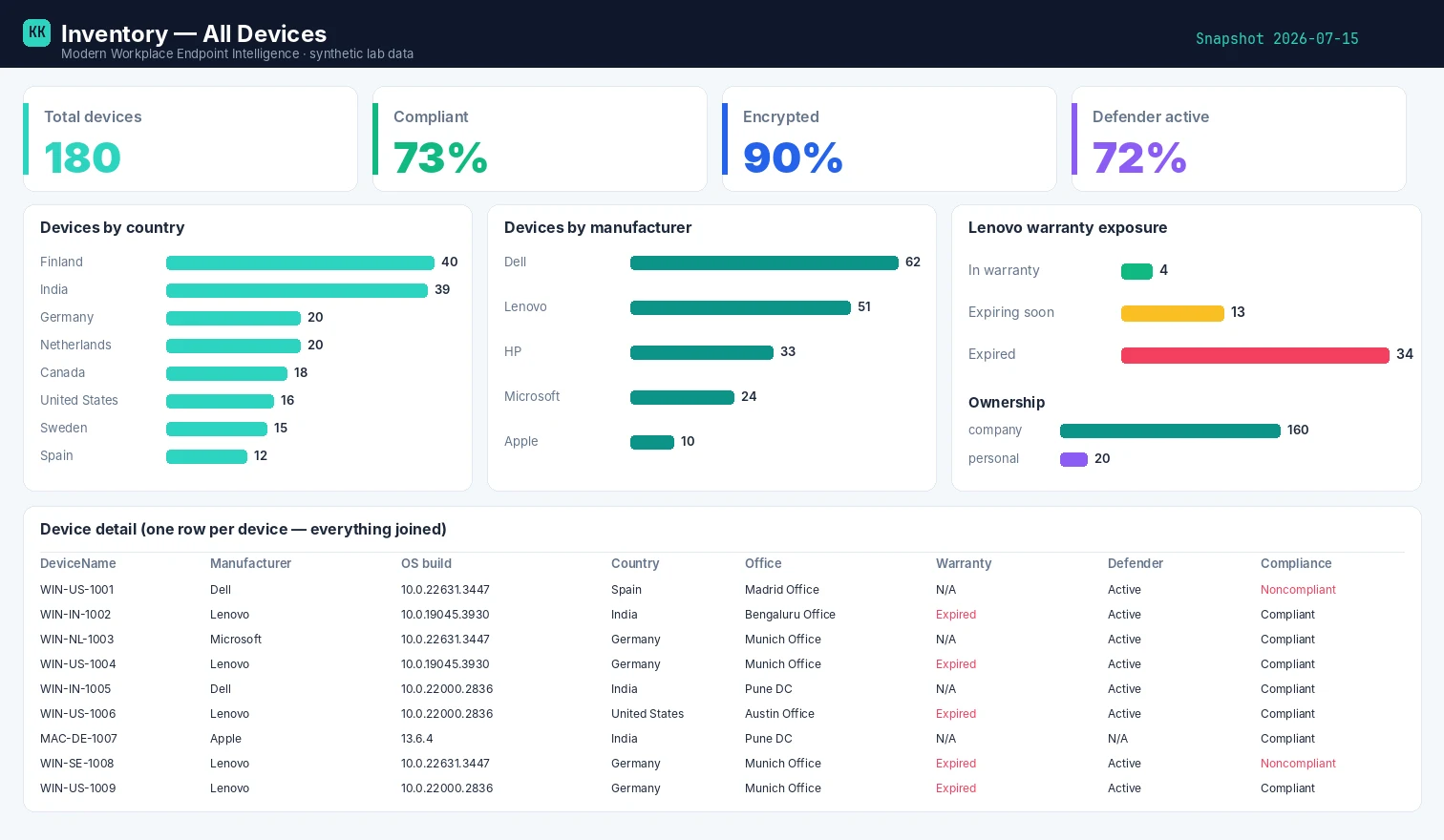
Want the template? The Inventory — All Devices report page
has the .pbit and the exact build kit.
Set it up, step by step
You don't build this one from scratch. Every collector shares the same read-only plumbing, so you set that up once — after that, adding this report is about a five-minute job.
- One-time — stand up the collection layer. Follow Setting up the collection layer: an Azure Automation account, a system-assigned Managed Identity (no secrets, no app registration), and a storage account for the CSV snapshots. You only do this once, however many collectors you end up running.
- Grant this collector's read-only scopes. In that guide's role-assignment step, add the scopes this one needs —
DeviceManagementManagedDevices.Read.AllandUser.Read.All. Every one ends in.Read.All: it reads, and never writes to your tenant. (Running more than one collector? Scopes are additive — add the new ones, don't replace what's already granted.) - Import the script as a runbook. Take the script, import it into the Automation Account as a PowerShell 7 runbook, and publish it.
- Schedule it. Attach a daily (or weekly) schedule the same way the setup guide shows. It then runs unattended, dropping a dated CSV into your
root/container each time. - Point Power BI at the CSV. Open the report template in Power BI Desktop and start with the bundled synthetic sample, so you can build the whole thing before touching real data. To switch to live data, use Get Data → Azure Blob Storage and point it at the dated CSV in your
root/container (the setup guide has the storage account and connection details). Refresh, and that's your dashboard.
No secrets, no app registration, nothing that can change your tenant — just a scheduled read and a CSV that Power BI draws from.
Gotchas from the lab
- Count devices, not rows. The single biggest reporting mistake here. Do your distinct counts on
DeviceName(or the device id), and do them before the visual — not by trusting a row count. - "Unknown" is a finding, not a bug. Devices with no assigned user, or a user with no office set
in Entra, come back as
Unknown. That blank is the insight — it's the shadow inventory nobody owns. - Warranty only exists where the OEM wrote it. Warranty parsing reads the device Notes field;
it's populated by a separate enrichment step, so non-OEM or un-enriched devices read
N/A. That's expected, not missing data. - Beta drift. A property that was there last quarter can move or vanish. Re-run the collector after Graph updates and diff the columns.
Reproduce it yourself
No tenant required. The synthetic fleet generator produces a
realistic Inventory_AllDevices.csv — the same schema, entirely fictional — so you can build and
test the whole report before you ever point it at real data.
FAQ
Does this need write access to my tenant? No. Every call is a read-only Graph GET (or a read-export job) under .Read.All scopes; nothing is written back.
Why not just export the All devices list? The export gives you the same columns — it doesn't join in the Entra location, OEM warranty or Defender health, which is the whole value here.
How do I avoid double-counting devices? Count distinct DeviceName, and do it before the visual — the collector also writes a pre-aggregated stats file with the distinct counts already done.
More in this series
Related
- The script → Inventory — All Devices
- The report + template → Inventory — All Devices report
- The bigger picture → Zero-Access Agent — where all ten snapshots come together.
- The capstone → The read-only AI agent that can't touch your tenant
References — Microsoft documentation
The Microsoft Learn documentation behind this one, if you want to go to the source:
- List managedDevices — the core Graph call for Intune device inventory: List managedDevices — Microsoft Graph
- managedDevice resource — the per-device fields you join on: managedDevice resource type
- Graph permissions — the read scopes needed for device data: Microsoft Graph permissions reference
- Entra device identity — the Entra device half of the join: What is device identity in Microsoft Entra ID?
- Intune device details — hardware/OEM details per device: View device details with Microsoft Intune
- Defender machine resource — Defender health/exposure per device: Machine resource type — Defender for Endpoint
Screenshots use synthetic data from a personal lab — no real tenant, users, or devices. Independent content, not affiliated with, sponsored by, or endorsed by Microsoft. Microsoft, Intune, Entra, Microsoft Graph, Azure, Defender and Power BI are trademarks of the Microsoft group of companies.

I build read-only Intune & Entra tooling in the open and write about what the portal is actually doing underneath. Everything comes from a personal lab.