Every policy, every target: the assignment map Intune won't draw for you
Open any compliance policy or configuration profile and Intune shows you its assignments. What it never shows is the whole map — every policy, every group it targets, which of those groups are dynamic, and which point at a group that no longer exists. This is the read-only collector that flattens all of it into one table.
The payoff
Tracing which groups a policy actually targets means opening each policy one at a time. The assignment map draws every policy-to-group link at once — and surfaces targets still pointing at deleted groups you’d otherwise never notice until something breaks.
The short version
Intune shows assignments one policy at a time. This scheduled, read-only collector walks every compliance policy, configuration profile, Settings Catalog policy, endpoint-security intent and ADMX template, resolves every target group (static or dynamic), flags broken and dynamic targets, and writes one flat assignment table — no write access, no live tenant in the report.
Why the portal doesn't hand you this
- It's per-policy, never fleet-wide. You can see what a single profile targets, but not "every policy hitting the Sales-Dynamic group", or "every assignment pointing at a deleted group".
- Dynamic groups hide their logic. A policy assigned to a dynamic group tells you nothing about the rule that decides membership — that lives in Entra, on the group.
- Broken targets are invisible. Assign a policy, delete the target group later, and the assignment quietly points at nothing. The console won't surface it; your table will.
What's different about this report
One row per policy × target, with the policy type, whether it's an Include or Exclude assignment (the assignment mode — not to be confused with app "intent"), the target type (group / All Devices / All Users), whether the group is dynamic, and the group's status (Active / missing / deleted). That's the coverage-and-gaps view the console can't assemble.
For example, a single row might read Win-Compliance-Baseline · Exclude · Sales-Dynamic (dynamic) · Active — which tells you at a glance that your compliance baseline is excluding a live dynamic group. Another might read BitLocker-Config · Include · (deleted group) · missing — an assignment quietly pointing at nothing. Neither is visible from any single policy blade.
How it works: a read-only collector
The read-only Graph roles are all .Read.All: DeviceManagementConfiguration.Read.All for the policies and assignments, and Group.Read.All / Directory.Read.All for the group metadata and dynamic rules. Nothing writes.
Verify before you trust it
Assignment shapes differ by policy type, and some newer policy types live on Graph's beta endpoint — confirm each type resolves in your own lab tenant and pin to /v1.0 where you can. Every figure in the screenshots is synthetic lab data (@contoso.com).
The Power BI report
Because the runbook already resolved every group, the Power BI side is a coverage map: assignments by policy type, by assignment mode (Include / Exclude), by target type, and a table you can filter down to any single broken or dynamic target.
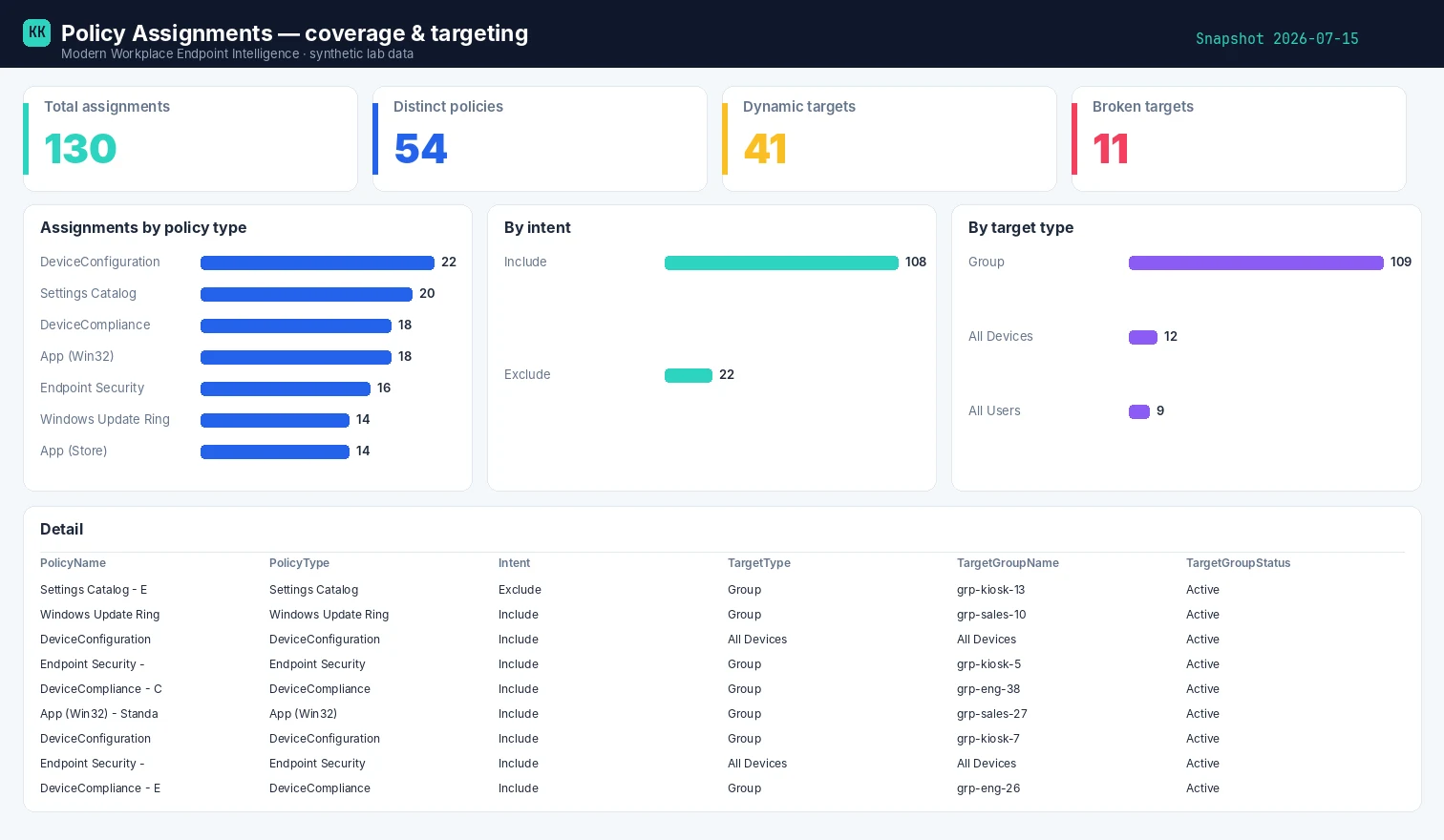
Template + build kit on the Policy Assignments report page.
Set it up, step by step
You don't build this one from scratch. Every collector shares the same read-only plumbing, so you set that up once — after that, adding this report is about a five-minute job.
- One-time — stand up the collection layer. Follow Setting up the collection layer: an Azure Automation account, a system-assigned Managed Identity (no secrets, no app registration), and a storage account for the CSV snapshots. You only do this once, however many collectors you end up running.
- Grant this collector's read-only scopes. In that guide's role-assignment step, add the scopes this one needs —
DeviceManagementConfiguration.Read.All,Directory.Read.AllandGroup.Read.All. Every one ends in.Read.All: it reads, and never writes to your tenant. (Running more than one collector? Scopes are additive — add the new ones, don't replace what's already granted.) - Import the script as a runbook. Take the script, import it into the Automation Account as a PowerShell 7 runbook, and publish it.
- Schedule it. Attach a daily (or weekly) schedule the same way the setup guide shows. It then runs unattended, dropping a dated CSV into your
root/container each time. - Point Power BI at the CSV. Open the report template in Power BI Desktop and start with the bundled synthetic sample, so you can build the whole thing before touching real data. To switch to live data, use Get Data → Azure Blob Storage and point it at the dated CSV in your
root/container (the setup guide has the storage account and connection details). Refresh, and that's your dashboard.
No secrets, no app registration, nothing that can change your tenant — just a scheduled read and a CSV that Power BI draws from.
Gotchas from the lab
- Exclude assignments matter as much as includes. An Exclude on a big group can silently gut a policy's reach — slice on the Include / Exclude mode to catch it.
- "All Devices" is not a group. It targets everything with no membership rule; treat it as its own target type, not a group lookup.
- A missing target is a finding.
(deleted group)in the status column is an assignment doing nothing — clean it up.
Reproduce it yourself
The synthetic fleet generator can emit a realistic, entirely
fictional PolicyAssignments.csv so you can build and demo the whole report before pointing it at real data.
FAQ
Does it change any assignments? No — it only reads policies, assignments and group metadata (.Read.All) and writes a CSV. Nothing is modified.
What's a "broken" target? An assignment pointing at a group that was later deleted — it quietly does nothing, and the portal won't surface it. The status column flags it.
Does it resolve dynamic group rules? Yes — it pulls each group's dynamic membership rule and status, so you can see what actually decides membership.
More in this series
Related
- The script → Policy Assignments
- The report + template → Policy Assignments report
- The bigger picture → Zero-Access Agent
- The capstone → The read-only AI agent that can't touch your tenant
References — Microsoft documentation
The Microsoft Learn documentation behind this one, if you want to go to the source:
- Assign device profiles — how Intune assigns profiles to groups: Assign device profiles in Microsoft Intune
- Include/exclude assignments — the include/exclude group model: Include and exclude assignments in Microsoft Intune
- Assignment filters — narrowing targets with filters: Create assignment filters in Microsoft Intune
- List assignments (Graph) — reading assignments from Graph: List deviceConfigurationAssignments
- Assignment resource (Graph) — the assignment object and its target: Get deviceConfigurationAssignment
Screenshots use synthetic data from a personal lab — no real tenant, users, or devices. Independent content, not affiliated with, sponsored by, or endorsed by Microsoft. Microsoft, Intune, Entra, Microsoft Graph, Azure, Defender and Power BI are trademarks of the Microsoft group of companies.

I build read-only Intune & Entra tooling in the open and write about what the portal is actually doing underneath. Everything comes from a personal lab.