Which devices can't take Windows 11 — the hardware blocker, per device
"How many of our devices are Windows 11 ready?" is a question that decides a hardware budget. Intune hints at readiness but won't hand you the specific blocker — TPM, CPU, Secure Boot, RAM — for every device, as data. This read-only collector does, so the refresh plan writes itself.
The payoff
“39% not capable” with no reason turns a hardware-refresh budget into a guess. The per-device blocker splits a free BIOS toggle (TPM, Secure Boot) from a genuine replacement — often reclaiming a large share of devices from the “buy new” pile before a single PO is raised. (Illustrative.)
The short version
Windows 11 readiness is a per-device hardware verdict. This read-only collector pulls each device's readiness state and the exact failing check (TPM 2.0, CPU family, Secure Boot, RAM, storage), enriched with make/model, so you can size and target the refresh. No write access, no live tenant in the report.
Why the portal doesn't hand you this
- A single "ready/not ready" flag isn't a plan. You need why not-ready — TPM off vs CPU unsupported are completely different fixes (one's a setting, one's a new laptop).
- The blockers are scattered. Readiness signals live across analytics and device properties, not in one exportable, per-device table.
- No make/model rollup. Budgeting means "which models are unsupported" — the console won't group the blocked devices by model for you.
What's different about this report
One row per device with the readiness state, the specific reason, and a boolean for each hardware check (TPM 2.0, Secure Boot, RAM, storage, and processor — family, cores, speed and 64-bit), joined to make and model — so "replace these 40 ThinkPads" falls straight out of the data.
For example, one row might read Latitude-7420 · Not capable · reason: Processor unsupported · TPM ✓ · Secure Boot ✓ — a hardware refresh, not a fix — while the next reads EliteBook-840 · Not capable · reason: TPM off · Processor ✓ — a BIOS toggle away from ready. Same "not capable" verdict, completely different bill.
How it works: a read-only collector
The read-only Graph roles are all .Read.All: DeviceManagementManagedDevices.Read.All for the devices and the readiness export. Nothing writes.
Verify before you trust it
The readiness data comes from Endpoint Analytics' Work-from-anywhere metric
(userExperienceAnalyticsWorkFromAnywhereMetrics('allDevices')/metricDevices) on Graph's beta
endpoint — a read-only GET that a single DeviceManagementManagedDevices.Read.All grants, no
on-device agent required. Note it returns nothing until Endpoint Analytics is onboarded in the
tenant (an un-onboarded tenant answers this query with no data at all). Microsoft evaluates the full
hardware set (TPM 2.0, Secure Boot, supported processor family, core count, speed, 64-bit, RAM ≥ 4 GB,
storage ≥ 64 GB); the check names and reason values can change, so confirm them in your own lab
tenant. Every figure in the screenshots is synthetic lab data (@contoso.com).
The Power BI report
The report is a refresh planner: devices by readiness reason, not-capable by manufacturer, and by state, with a table that filters to any single blocker for a targeted campaign.
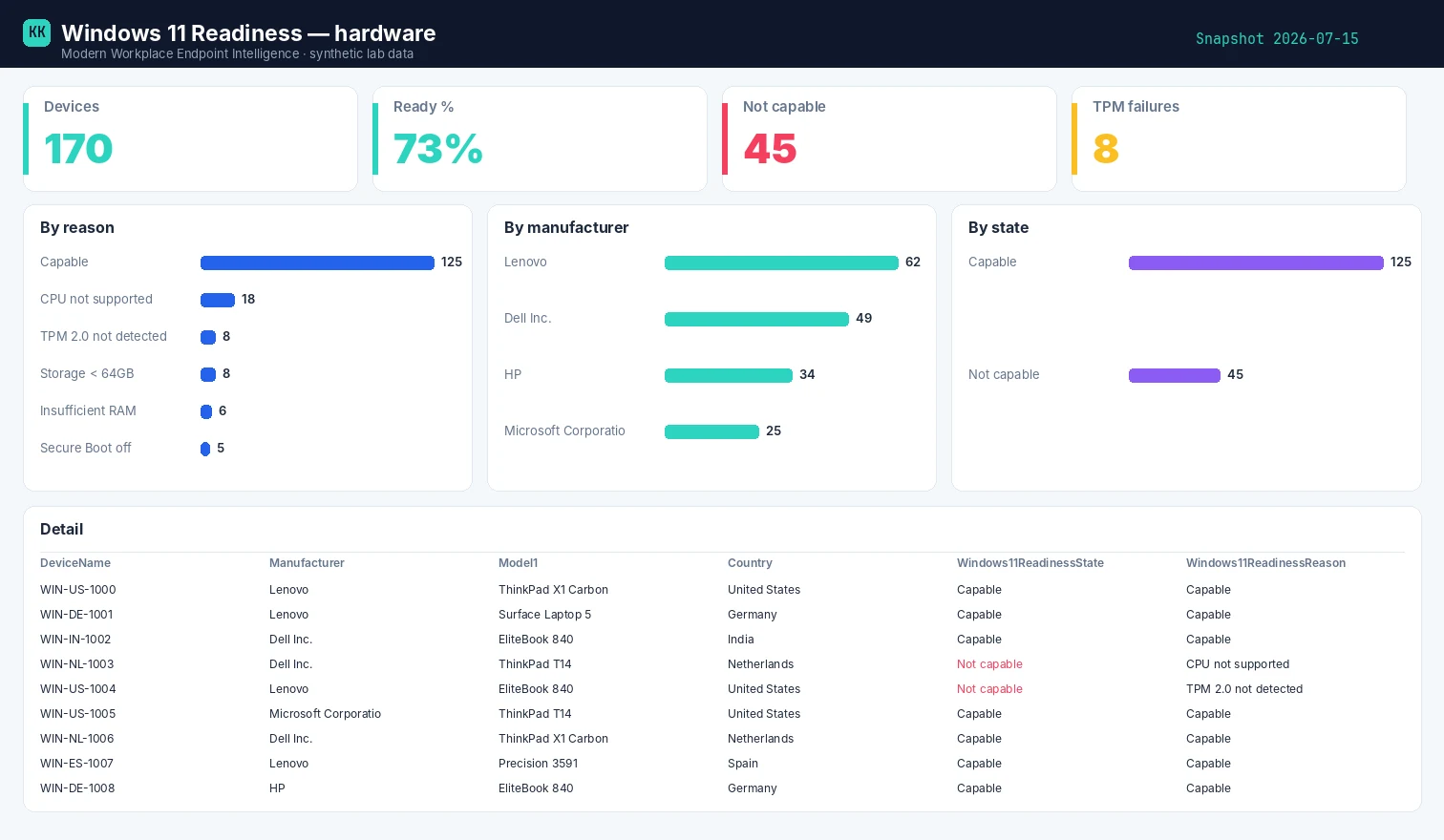
Template + build kit on the Windows 11 Readiness report page.
Set it up, step by step
You don't build this one from scratch. Every collector shares the same read-only plumbing, so you set that up once — after that, adding this report is about a five-minute job.
- One-time — stand up the collection layer. Follow Setting up the collection layer: an Azure Automation account, a system-assigned Managed Identity (no secrets, no app registration), and a storage account for the CSV snapshots. You only do this once, however many collectors you end up running.
- Grant this collector's read-only scopes. In that guide's role-assignment step, add the scopes this one needs —
DeviceManagementManagedDevices.Read.All. Every one ends in.Read.All: it reads, and never writes to your tenant. (Running more than one collector? Scopes are additive — add the new ones, don't replace what's already granted.) - Import the script as a runbook. Take the script, import it into the Automation Account as a PowerShell 7 runbook, and publish it.
- Schedule it. Attach a daily (or weekly) schedule the same way the setup guide shows. It then runs unattended, dropping a dated CSV into your
root/container each time. - Point Power BI at the CSV. Open the report template in Power BI Desktop and start with the bundled synthetic sample, so you can build the whole thing before touching real data. To switch to live data, use Get Data → Azure Blob Storage and point it at the dated CSV in your
root/container (the setup guide has the storage account and connection details). Refresh, and that's your dashboard.
No secrets, no app registration, nothing that can change your tenant — just a scheduled read and a CSV that Power BI draws from.
Gotchas from the lab
- TPM "not detected" is often a BIOS setting. Before you budget a replacement, check whether TPM is merely disabled in firmware — that's a config fix, not a purchase.
- Unsupported processor is the hard blocker. A CPU that's not on Microsoft's supported-processor list generally means new hardware; separate those from the fixable ones (TPM/Secure Boot) early.
- Unknown ≠ ready — and needs Endpoint Analytics. This metric only populates once Endpoint Analytics is enabled/onboarded; un-onboarded devices report
Unknown. TreatUnknownas a gap to chase (onboard them), not a pass.
Reproduce it yourself
The synthetic fleet generator can emit a realistic, entirely
fictional Readiness.csv so you can build and demo the whole report before pointing it at real data.
FAQ
Does this need an agent on each device? No — it's a read-only GET against the Endpoint Analytics Work-from-anywhere metric; no on-device agent required.
Why do some devices show "Unknown"? The metric only populates once Endpoint Analytics is onboarded; treat Unknown as a gap to chase, not a pass.
Is "not ready" always a new laptop? No — TPM off or Secure Boot disabled are firmware toggles; an unsupported processor is the hard blocker. The report separates them.
More in this series
Related
- The script → Windows 11 Readiness
- The report + template → Windows 11 Readiness report
- The bigger picture → Zero-Access Agent
- The capstone → The read-only AI agent that can't touch your tenant
References — Microsoft documentation
The Microsoft Learn documentation behind this one, if you want to go to the source:
- Windows 11 requirements — the TPM/CPU/Secure Boot minimum bar: Windows 11 requirements
- Supported processors — the CPU allow-list that blocks devices: Windows 11 supported Intel processors
- TPM 2.0 — the TPM requirement detail: TPM recommendations
- Endpoint analytics — where the per-device readiness data is collected: Endpoint analytics overview
- Upgrade to Windows 11 — acting on the ready devices: Upgrade devices to Windows 11 using feature updates
Screenshots use synthetic data from a personal lab — no real tenant, users, or devices. Independent content, not affiliated with, sponsored by, or endorsed by Microsoft. Microsoft, Intune, Entra, Microsoft Graph, Azure, Defender and Power BI are trademarks of the Microsoft group of companies.

I build read-only Intune & Entra tooling in the open and write about what the portal is actually doing underneath. Everything comes from a personal lab.