Documentation that writes itself: a read-only snapshot of your whole Intune config
Ask an admin for "the documentation" of their Intune tenant and you'll get a nervous laugh. It's in the portal — spread across compliance policies, configuration profiles, app assignments, Autopilot profiles, update rings — and the moment anyone writes it down in a Word doc, it's out of date. This is a scheduled, read-only collector that renders the entire Intune and Windows 365 configuration into one always-current, human-readable document.
The payoff
Hand-documenting a full Intune / Windows 365 configuration is days of screenshotting each quarter — and stale the moment you finish. This regenerates the whole snapshot on a schedule, so audit and handover docs are always current at essentially zero manual effort. (Illustrative.)
The short version
Nobody hand-documents Intune, because it's stale before you save the file. This runbook injects a read-only Graph token into the community M365Documentation module, walks the config section by section, and renders one merged HTML document — refreshed on a schedule, no write access, no live tenant in the output. It's the prose half of the Zero-Access Agent's knowledge (the CSV snapshots are the structured half).
Why "just look in the portal" isn't documentation
The portal always shows the current state — that's the problem, not the solution. It's a live control surface, not a record. When you need to answer "what did our compliance baseline look like before the change last month?", or hand a new engineer a single readable map of the tenant, or prove to an auditor what was configured, the portal gives you none of it:
- It's navigation, not narrative. Config is scattered across a dozen blades. There's no one document that says, top to bottom, here is everything this tenant enforces.
- Manual docs die on contact. The instant someone edits a policy, your lovingly-maintained runbook or Word export is wrong — and you won't know which parts.
- Export is per-object and lossy. You can export a profile as JSON, but that's machine data for one object, not a readable account of the whole estate.
So the job is to generate the documentation from the tenant itself, on a schedule, read-only — so it's never more stale than its last run.
Standing on community shoulders
This collector doesn't reinvent the documentation engine — it uses the excellent, open-source M365Documentation module by Thomas Kurth, which already knows how to walk Intune and Windows 365 section by section and render them. The runbook's job is narrower and specific to the Zero-Access Pattern: sign in as a Managed Identity, mint a read-only Graph token, hand that token to the module, refresh it as the collection runs, and drop the finished HTML where the agent can cite it.
Licensing, done right
M365Documentation is GPL-3.0. This runbook only calls it at runtime — you install it yourself from the PowerShell Gallery — so the module's source never enters this repo, and the runbook stays MIT. Credit where it's due.
How it works: a read-only collector
The read-only Graph app roles are all .Read.All:
DeviceManagementConfiguration.Read.All, DeviceManagementApps.Read.All,
DeviceManagementManagedDevices.Read.All, Directory.Read.All, and Organization.Read.All for the
connectivity self-test. Nothing writes.
Verify before you trust it
The exact scopes the module needs can shift between its versions — check against the module's docs for the version you install, and confirm each section renders in your own lab tenant first.
What the output looks like
One merged, human-readable HTML record of the whole tenant — a table of contents down the side, then section after section of the actual configuration: every compliance policy and its settings, configuration profiles and their assignments, the app catalog, Autopilot and enrolment. It's the document you hand a new engineer or an auditor, and it's never more stale than its last scheduled run.
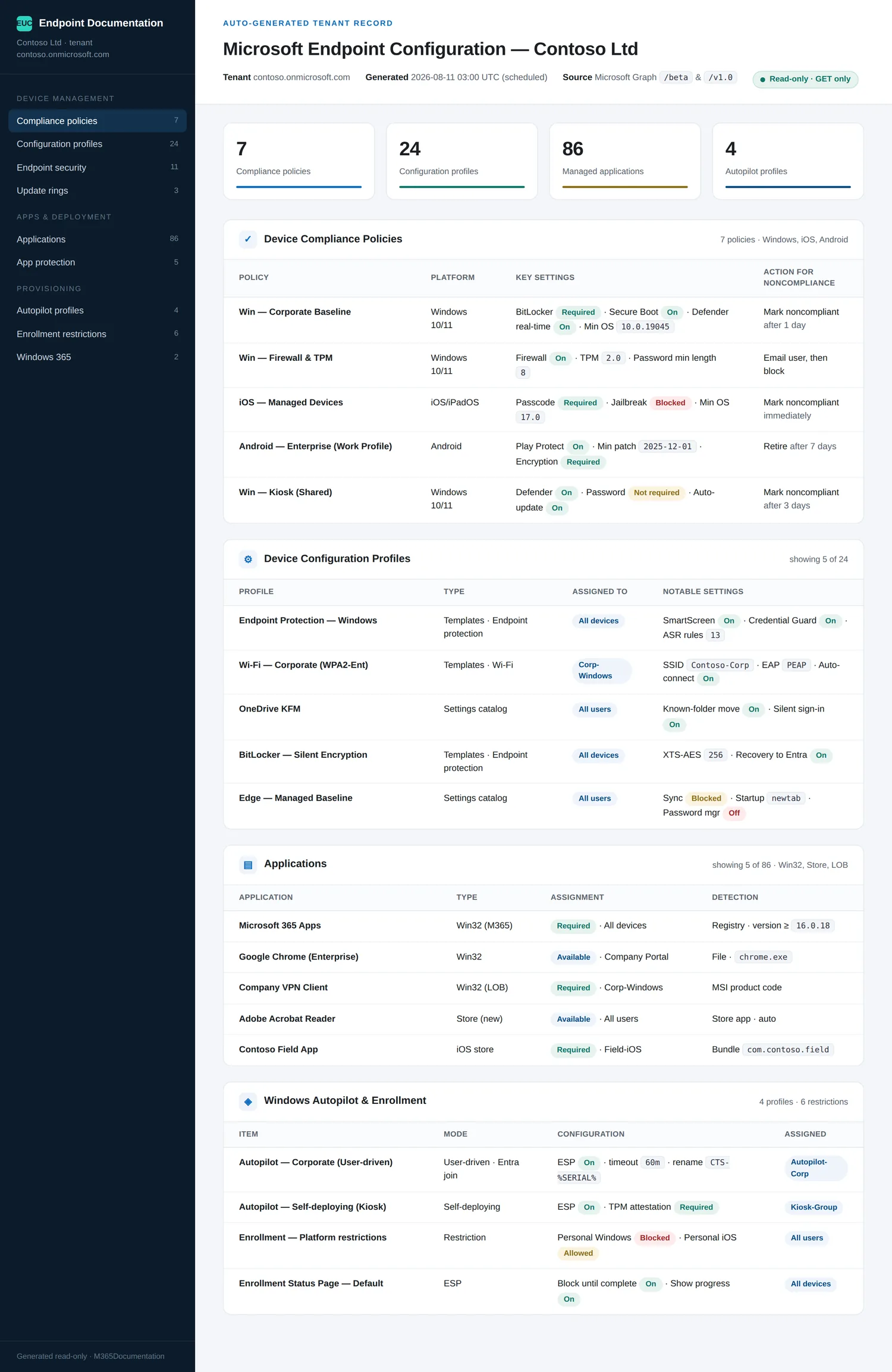
Every value above is synthetic lab data (contoso.onmicrosoft.com) — the real run renders your own
tenant's config, read-only, and never leaves your storage account.
Where it goes
The rendered HTML lands in the storage account's reports/ container and feeds the documentation
side of the agent's knowledge — the euc-documents index in Azure AI Search. That's the deliberate
split at the heart of the Zero-Access Agent: structured CSV snapshots answer "how many, which,
where"; this prose documentation answers "how is it configured, and why". The agent reads both,
and holds no live connection to either.
Set it up, step by step
You don't build this one from scratch. Every collector shares the same read-only plumbing, so you set that up once — after that, adding this report is about a five-minute job.
- One-time — stand up the collection layer. Follow Setting up the collection layer: an Azure Automation account, a system-assigned Managed Identity (no secrets, no app registration), and a storage account for the CSV snapshots. You only do this once, however many collectors you end up running.
- Grant this collector's read-only scopes. In that guide's role-assignment step, add the scopes this one needs —
DeviceManagementApps.Read.All,DeviceManagementConfiguration.Read.All,DeviceManagementManagedDevices.Read.All,Directory.Read.AllandOrganization.Read.All. Every one ends in.Read.All: it reads, and never writes to your tenant. (Running more than one collector? Scopes are additive — add the new ones, don't replace what's already granted.) - Import the script as a runbook. Take the script, import it into the Automation Account as a PowerShell 7 runbook, and publish it.
- Schedule it. Attach a daily (or weekly) schedule the same way the setup guide shows. It then runs unattended, dropping a dated CSV into your
root/container each time. - Point Power BI at the CSV. In Power BI Desktop, start with the synthetic sample so you can build before touching real data. For live data, use Get Data → Azure Blob Storage and point it at the dated CSV in your
root/container (the setup guide has the storage account and connection details). Refresh to get your dashboard.
No secrets, no app registration, nothing that can change your tenant — just a scheduled read and a CSV that Power BI draws from.
Gotchas from the lab
- It's a document, not a dashboard. There's no Power BI here on purpose — the output is prose you read (or the agent cites), not numbers you slice.
- Install the module's dependencies first. M365Documentation leans on MSAL.PS, PSWriteOffice and PSHTML — load them into the Automation Account from PSGallery before the first run, or the runbook stops at import.
- Token refresh mid-collection matters. A full tenant walk can outlast a single token; the runbook refreshes as it goes, so long collections don't die halfway.
FAQ
Is there a Power BI report for this one? No — the output is a human-readable HTML document, not a dashboard. It's the prose half of the agent's knowledge; the CSV snapshots are the structured half.
Does it copy the M365Documentation module into my repo? No. You install the GPL module yourself from the PowerShell Gallery; the runbook only calls it at runtime, so the runbook stays MIT.
How current is the documentation? It's regenerated on a schedule, so it's never more stale than its last run — unlike a hand-maintained Word doc.
More in this series
Related
- The script → Intune Documentation
- The bigger picture → Zero-Access Agent — where the prose and the snapshots come together.
- The capstone → The read-only AI agent that can't touch your tenant
- Credit → M365Documentation by Thomas Kurth
References — Microsoft documentation
The Microsoft Learn documentation behind this one, if you want to go to the source:
- Device configuration — the profiles/features/settings surface: Device features and settings in Microsoft Intune
- Settings catalog — the enumerable per-setting policy model: Create a policy using the settings catalog
- Intune in Microsoft Graph — how Graph exposes Intune config: Working with Intune in Microsoft Graph
- Devices/apps API overview — reading config across devices and apps: Intune devices and apps API overview
- deviceConfiguration resource — the config object being snapshotted: deviceConfiguration resource type
Screenshots use synthetic data from a personal lab — no real tenant, users, or devices. Independent content, not affiliated with, sponsored by, or endorsed by Microsoft. Microsoft, Intune, Entra, Microsoft Graph, Azure, Defender and Power BI are trademarks of the Microsoft group of companies.

I build read-only Intune & Entra tooling in the open and write about what the portal is actually doing underneath. Everything comes from a personal lab.